If the first thing you want to do when you open iMoveGPS is “fly over and grab that timed Pokémon,” I’d suggest pausing for three seconds. What actually keeps your experience smooth has never been how fast the software is—it’s whether you move like a real person. This article isn’t here to scare you. It’s here to say one thing: set the speed right, slow the pace down, and you’ll avoid the vast majority of troubles that were avoidable in the first place—and enjoy the game with more peace of mind.
First, Understand What Niantic Is Actually Looking At
Pokémon GO’s anti-cheat system doesn’t just glance at your GPS coordinates and call it a day. It cross-references multiple dimensions of data: your movement speed, the timestamps between two points, whether your device sensor readings are plausible, and the regularity of your operating behavior.
Put simply, the system isn’t judging “where you are”—it’s judging “how you got there.”
A real human player needs time to get from point A to point B. Walking speed is roughly 3–5 km/h, cycling around 15–20 km/h, and driving in the city is 30–60 km/h. If you were at Taipei Main Station one second and appear at Pier-2 in Kaohsiung the next, with only five minutes in between, the server doesn’t need to be smart to flag that anomaly. So iMoveGPS’s speed adjustment isn’t fundamentally a tool for “moving faster”—it’s a tool for making you move more like a human. Use it right, and it becomes your most natural disguise.

What Speed Should You Actually Set: A Reference You Can Follow Directly
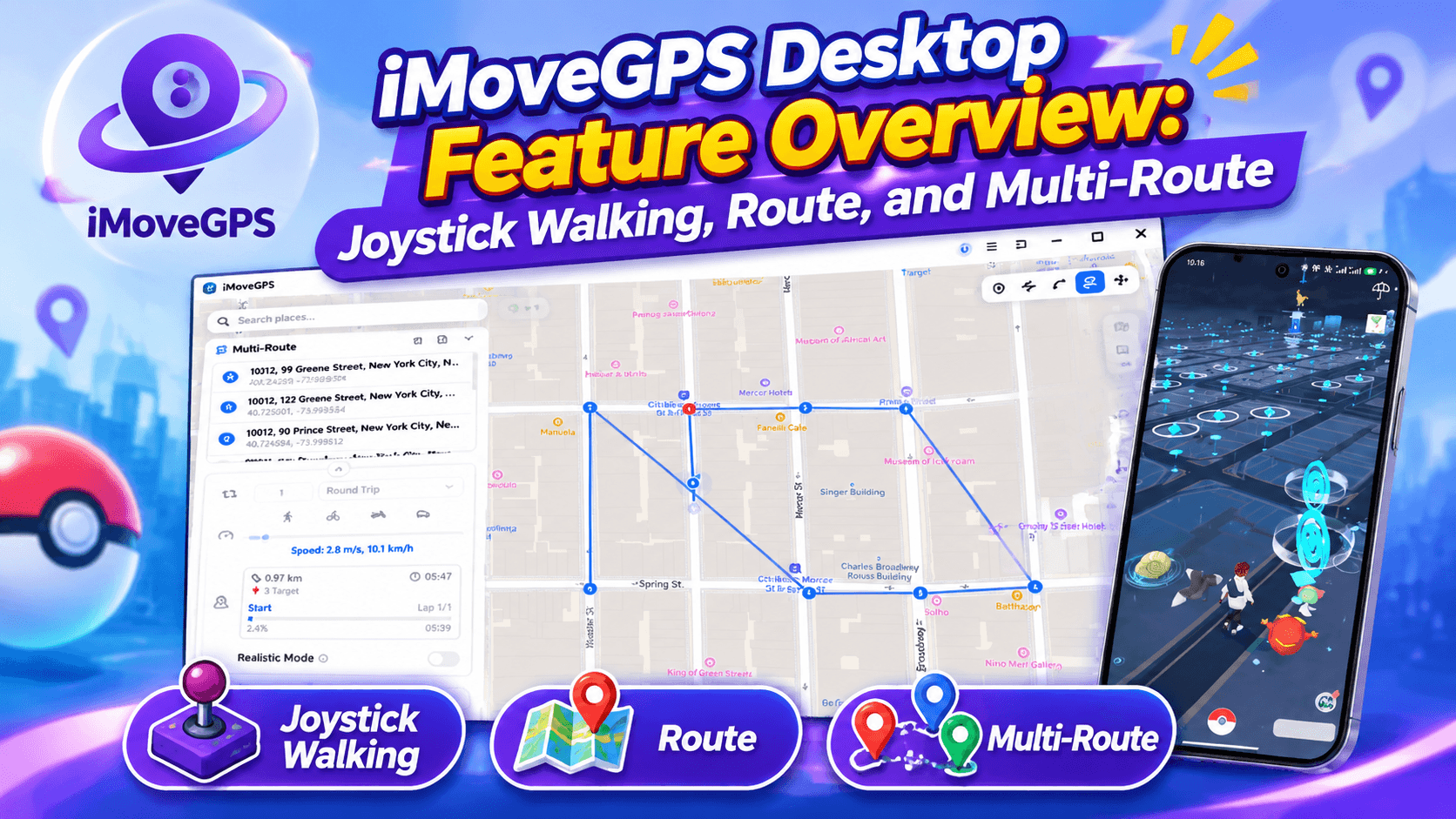
iMoveGPS typically offers a joystick mode or route simulation mode, with manually adjustable speed. Here are a few presets worth remembering—just apply them directly when you play:
Walking preset (3–5 km/h) is the speed you should use most often. Whether you’re spinning PokéStops around parks, neighborhoods, and shopping districts, or catching Community Day Pokémon, use this speed the whole time. Real people walk this fast, and what the system sees is a normal player taking a stroll. Don’t think “this is too slow, it’s wasting time”—the smooth experience you get from slowing down is far more worth it than those few minutes you’d save.
Cycling preset (10–15 km/h) suits times when you need to cover several blocks in a shorter period, or spin PokéStops along a riverside bike path. This speed is still within human physical range, so the data won’t look out of place. But note: don’t hold a constant 15 km/h for extended periods without fluctuation. Real cycling has traffic lights, deceleration, and pauses to catch Pokémon. If iMoveGPS has a “variable speed” or “random fluctuation” option, turn it on for the cycling preset.
Presets to avoid: sustained movement above 30 km/h. Cruising at city driving speed while spinning PokéStops in the game looks “awesome,” but a player moving at 40 km/h through alleys, precisely stopping at a PokéStop every few dozen meters to spin for three seconds and then continuing—that behavior pattern itself is extremely un-human. Real drivers don’t stop every 50 meters. If you want to move at higher speed, honestly simulate the state of “driving past without spinning PokéStops,” and start operating only after you arrive at your destination.
Cross-region movement: If you want to “go” from one city to another, don’t force-fly using the speed adjustment. The correct approach: turn off iMoveGPS’s movement function, set your location directly to the target city, and then wait. How long? As a rough rule of thumb: about 25–30 minutes per 100 km. From Taipei to Taichung is about 160 km, so after setting the location, wait around 40 minutes before opening the game. You can go do other things during this time—don’t repeatedly switch back to the game to check “am I there yet.” Repeated checking itself produces unnatural operating-interval data.

The Detail Easier to Overlook Than Speed: Pauses and “Imperfection”
Real people playing Pokémon GO share one trait: irregularity.
You stop when you walk, you wait at red lights, you suddenly see a Pokémon and stand still to throw a few balls, you walk into a convenience store to buy water and spin a PokéStop while you’re at it. These pauses and interruptions show up in the data as a “non-uniform, randomly spaced” pattern.
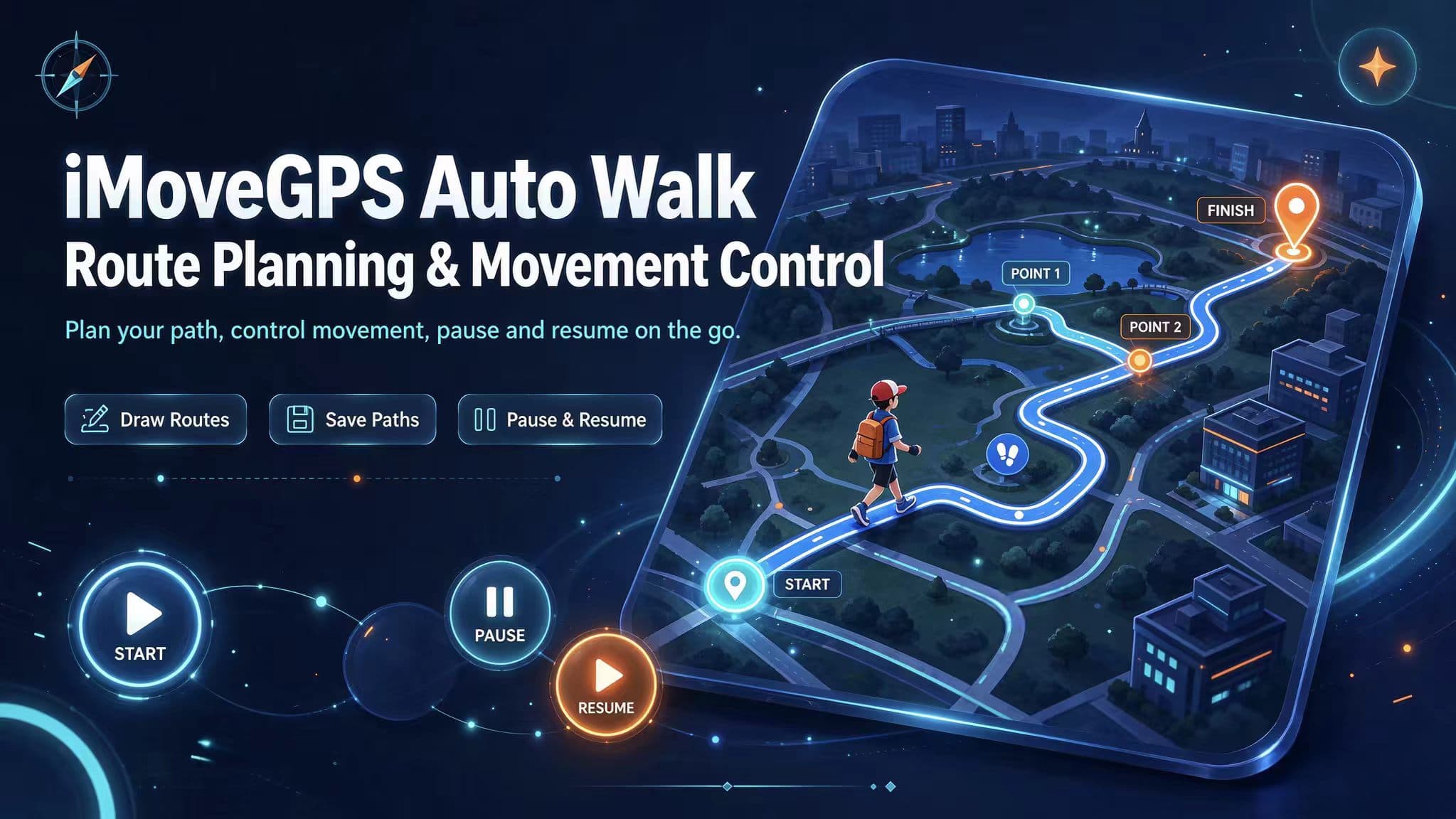
If you use iMoveGPS’s route simulation, deliberately create these pauses. The method is simple: after moving some distance, manually pause movement, open the game at your current location, catch a few Pokémon, spin one or two PokéStops, stay for 1–3 minutes, then continue moving. Don’t go from start to finish in one uniform, non-stop stretch. Uniform linear motion is a machine trait, not a human one.
Also, don’t lock iMoveGPS’s speed at the same value for long stretches. If you walk at 4.5 km/h for half an hour today, adjust it at least two or three times along the way—say down to 3.2, up to 4.8, back to 4.0. The range doesn’t need to be big; the key is not letting your data curve become a straight line.
One Last Honest Word
iMoveGPS’s speed adjustment is detailed enough—both joystick mode and route mode give you a fairly natural movement experience. But no matter how good the tool is, if the person using it is rushing for “maximum efficiency,” pulling the speed to unreasonable presets, never pausing, never waiting—then even the best tool can’t deliver what it’s capable of.
Slow the speed down a bit, add the pauses in, and honestly wait out the cooldown during cross-region movement. The more you play like an unhurried real person, the smoother the experience. Rare Pokémon will always show up again—get the rhythm right, and every one you catch feels more solid.
Happy catching Pokémon from home too. Slow and steady wins the race.